New functionality you will love.
Frustrated with looking for emails and other files that relate to a specific thing in your business system?
No problem, we've got you covered! For example, you can quickly drag and drop any file onto an ERP contact, creating a linked document with the file attached. The document can easily be edited before saving, as well as having the option to attach additional files to the same document if needed.
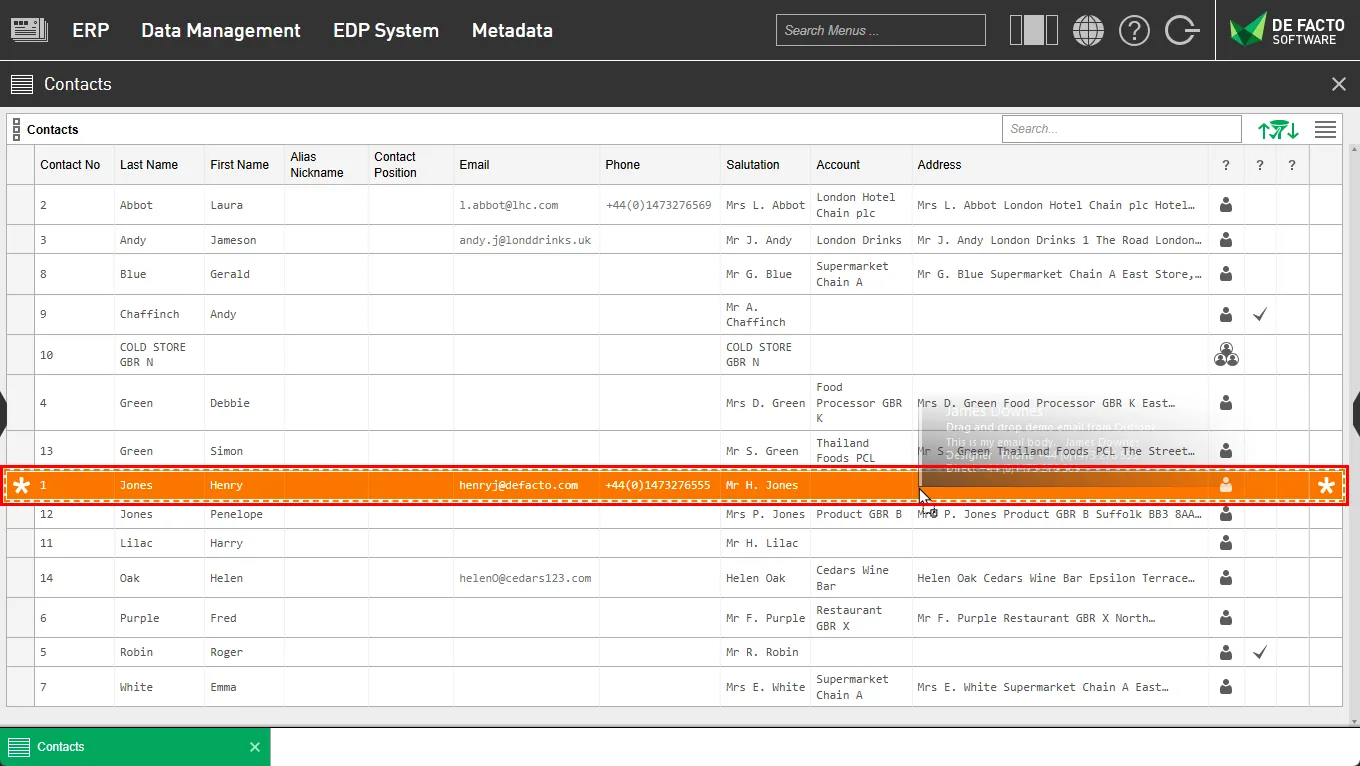
Furthermore, if you drag and drop on the right side of the contact row, the system will create an interaction against it with the linked document and file. The interaction type (such as a telephone call) can then be chosen by you before saving the interaction.
Don't be stopped by file type restrictions... you can drag and drop any file type extensions from emails to zip files.
Want to drag and drop emails straight from Microsoft Outlook onto a contact row? No problem, you can do that too!
Want to see all linked documents against a contact? Simply access them via the contact row menu to see a full list.
Documents can be linked to multiple contacts and other records at the same time, saving duplication and disk space.
This drag and drop works perfectly for our built in CRM.
The user interface functionality
Files can be dragged and dropped onto rows if they have document linking enabled.
Document-enabled only
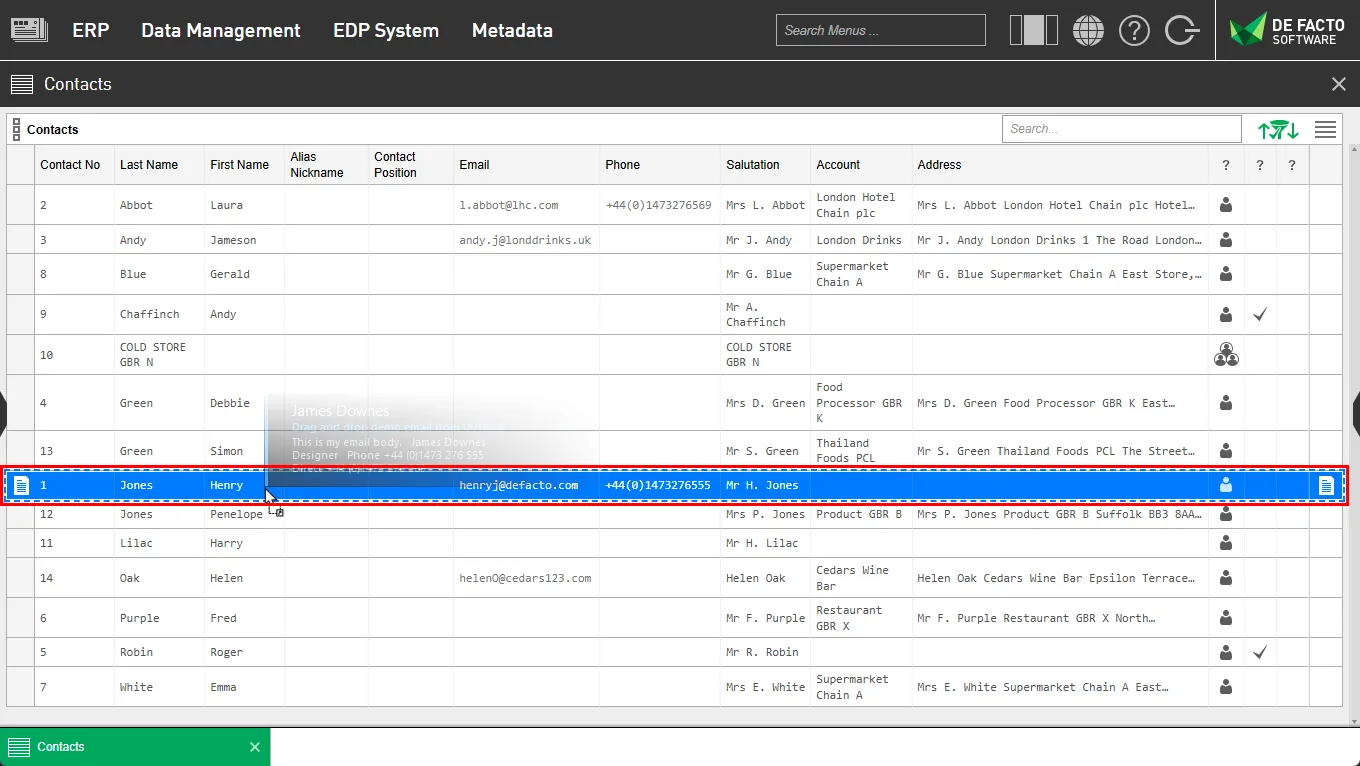
Dragging a file onto an enabled record (such as ERP > Work Hub > Contacts) will show a blue area with a blue dotted line.
In the below example, dropping the file will create a document linked to this contact record.
Document & interaction-enabled
If the row is both Document & Interaction-enabled, dragging a file onto the end half of the row will show an orange area with an orange dotted line.
In the below example, dropping the file on the orange area will be treated as Interaction file drops.