In a busy ERP environment, efficiency often comes from small improvements. While new features and functionality attract most of the attention, the way that users navigate and interact with the system can have just as much impact on productivity.
For many users, keyboard shortcuts are an overlooked tool that can significantly reduce the time spent performing routine tasks. Actions that typically require several mouse clicks can often be completed with a simple key combination, helping users to work more efficiently throughout the day.

Building Faster Habits
ERP users frequently repeat the same processes hundreds of times each week. From creating and editing records to searching for data and processing transactions, these activities often make up the majority of a user's day.
While each action may only take a few seconds, the constant switching between keyboard and mouse can disrupt the flow. By using keyboard shortcuts regularly, users can build faster habits and move through familiar tasks more naturally, keeping their focus on the process rather than the navigation.
Everyday Shortcuts
The good news is that there's no need to memorise every shortcut. Adopting even just a few of the shortcuts that you use most often can make a noticeable difference to the speed of everyday tasks.
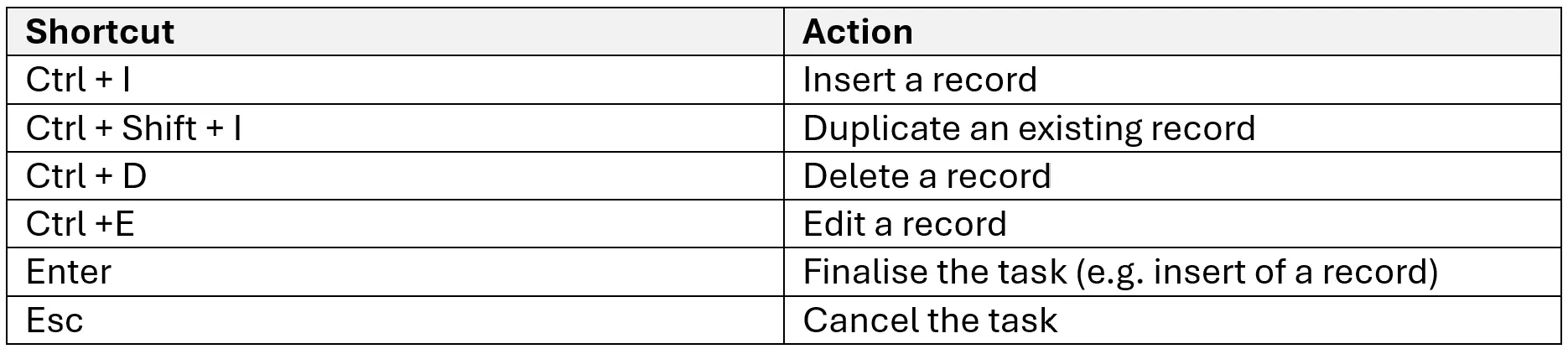
The shortcuts below are some of the most commonly used when creating and maintaining records:
Taking Navigation a Step Further
While shortcuts for creating and maintaining records can save time, some of the biggest productivity gains come from navigating the system itself without reaching for the mouse.
Navigating List Pages
When viewing a list page, one record is highlighted green. The Up and Down arrow keys move this highlight between records. Space expands or collapses the highlighted record, while Ctrl + O opens it in a new tab.
To narrow down the records displayed, Ctrl + S moves focus to the list page's search bar. Return/Enter then confirms the search.
Navigating Menus
With a record highlighted, Ctrl + M takes you to its row menu, while Ctrl + Shift + M takes you to the list page’s header menu. The arrow keys move between menu items and Enter or Space opens the selection.
Moving through records
When working on a new or expanded existing record, Tab moves to the next property and eventually the next page part, with Shift + Tab moving backwards. In a lookup property, Ctrl + S opens the lookup. The shortcuts from Navigating List Pages also apply within the lookup, with the addition of Enter to confirm selection of the highlighted record.
Worth remembering
Some shortcuts can do different things depending on where it is used. For example, Ctrl + S moves focus to the search bar on a list page, but opens a lookup when used in a lookup property.
Top tip: Ctrl + Shift + S moves focus to the search bar in the navigation bar. This is useful for finding pages that aren't easy to locate through the navigation menu or simply just navigating to straight to a new page without touching the mouse.
Small Changes That Add Up
Even a few well-chosen shortcuts can make routine tasks quicker. Starting with those used most often and adding others over time, is a straightforward way to build the habit. The time saved on individual actions may be small, but it adds up across a busy working day.
Want to learn more?
There are two ways to get a list of shortcut keys in EDP. The first method is to use the built in Help, accessed through the big Question Mark icon in the top right corner of the EDP application. This will open Help and under User Interface > Keyboard Functionality you can find the full list.
Alternatively, from within EDP just type "Keyboard" into the search menu and click on Metadata > Keyboard Functions which will display the list of controls.